⚠️ Warning
This guide is for players that do not have the Sinclair Solutions Deluxe DLC installed.
If you have the DLC content installed use this guide instead: SSD - Field of View Fix
Field of View Fix
This guide explains how to fix the field of view (FOV) by modifying keybinds within the "UserMP.ini" config file.
Navigate to UserMP.ini
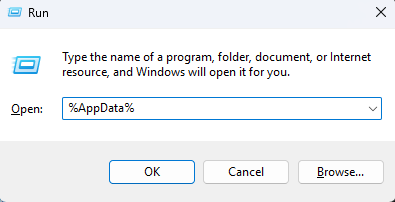
Press
Windows+Rto open the Windows Run DialogType
%AppData%into the text box.Press
Enter. This will open the "AppData" folder.
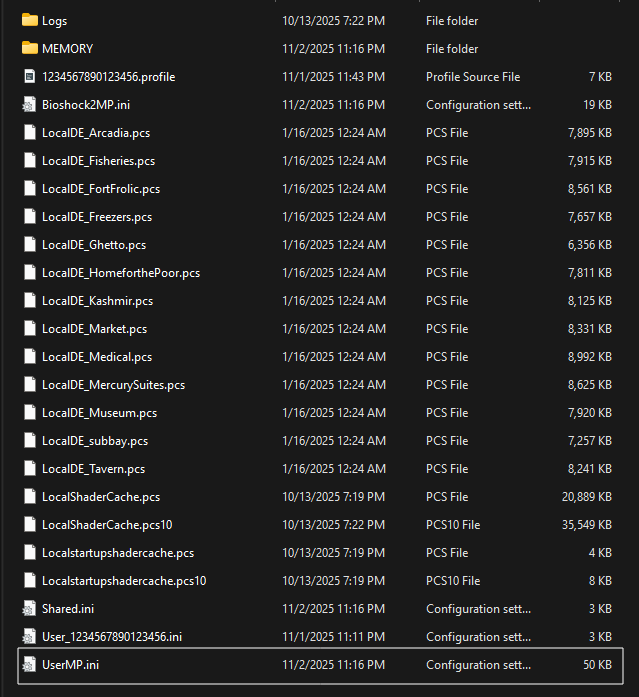
Within the "AppData" folder, double-click the folder called "Bioshock2Steam".
Within the "Bioshock2Steam" folder, open the file "UserMP.ini" in any text editor.
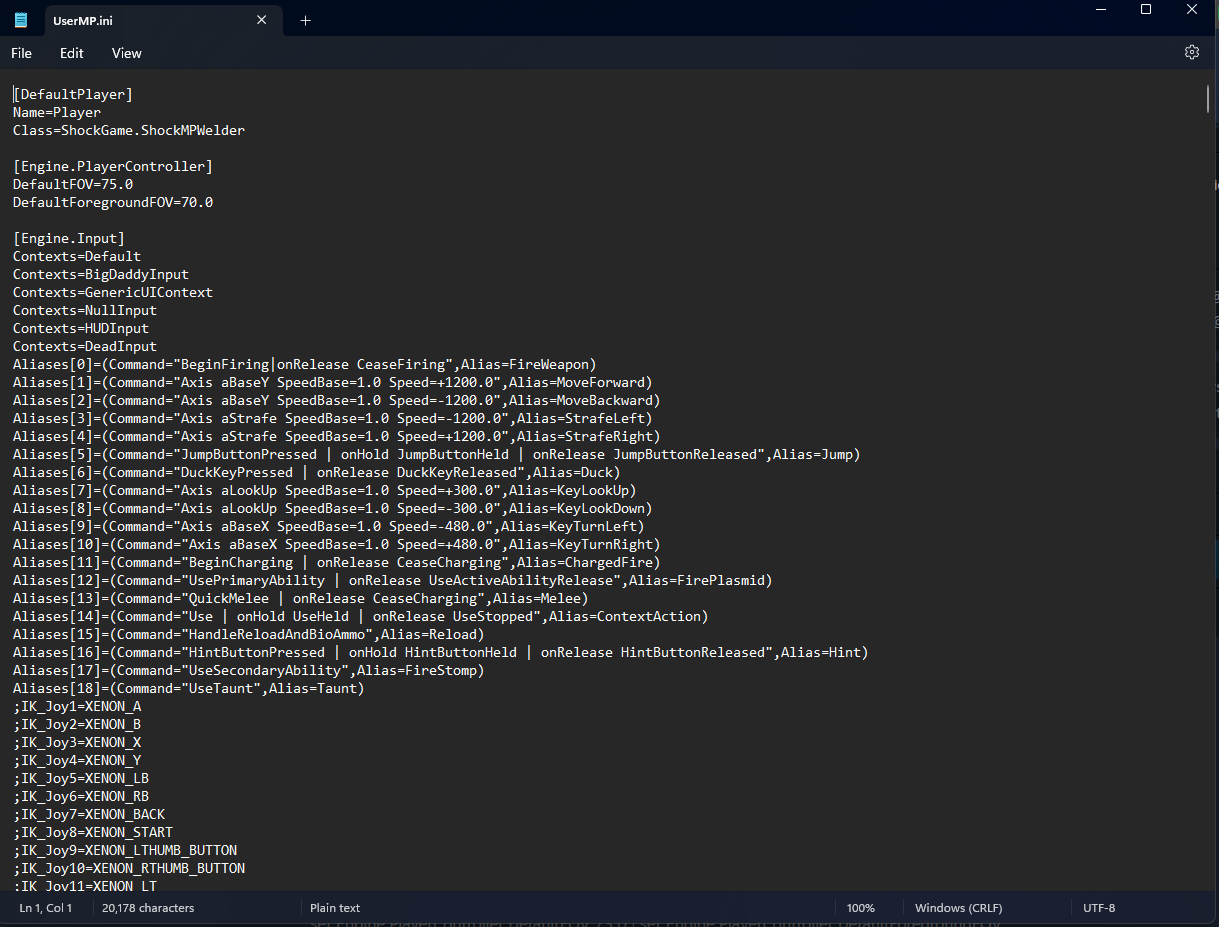
The file should look similar to this once opened:
Edit Keybinds
The required steps vary depending on whether you are using a mouse and keyboard or a controller.
Mouse and Keyboard
With "UserMP.ini" open, press
Ctrl+Fto open the search box.Type
Minus=into the text field, then pressEnter. This will bring you to the first instance of this keybind in the file.Modify this first line by copying and pasting the following:
Minus=set PlayerController DesiredFOV XX|set PlayerController DefaultFOV XX|set PlayerController ForegroundFovAngle XX|set PlayerController DefaultForegroundFOV XX- Replace
XXin all four places with any FOV values of your choice, between 0 and 180. Once done, it should resemble this, for example:
Minus=set PlayerController DesiredFOV 90|set PlayerController DefaultFOV 90|set PlayerController ForegroundFovAngle 85|set PlayerController DefaultForegroundFOV 85📝 Note
The first two XX values in the command are the background FOV. Both values should be the same.
The last two XX values in the command are the foreground (or viewmodel) FOV. Both values should be the same, but can be different from the first two values.
The
Minus=keybind appears 6 times in the file. Modify each of the remaining 5 lines in the exact same way, by copying and pasting the line above with your FOV values.Save the file, either by pressing
Ctrl+Sor choosing "File > Save" from the menu bar.
Controller
With "UserMP.ini" open, press
Ctrl+Fto open the search box.Type
XENON_RT=into the text field, then pressEnter. This keybind must be changed in 6 different places in the file. In 3 places, the keybind hasFireWeapon, 1 place hasToggleSpectatingFixedView, and in 2 places it is blank.If the keybind says
XENON_RT=FireWeapon, modify the line by copying and pasting the following:
XENON_RT=FireWeapon|set PlayerController DesiredFOV XX|set PlayerController DefaultFOV XX|set PlayerController ForegroundFovAngle XX|set PlayerController DefaultForegroundFOV XX- Replace
XXin all four places with any FOV values of your choice, between 0 and 180. Once done, it should resemble this, for example:
XENON_RT=FireWeapon|set PlayerController DesiredFOV 90|set PlayerController DefaultFOV 90|set PlayerController ForegroundFovAngle 85|set PlayerController DefaultForegroundFOV 85📝 Note
The first two XX values in the command are the background FOV. Both values should be the same.
The last two XX values in the command are the foreground FOV. Both values should be the same, but can be different from the first two values.
- If the keybind says
XENON_RT=, modify the line by copying and pasting the following instead:
XENON_RT=set PlayerController DesiredFOV XX|set PlayerController DefaultFOV XX|set PlayerController ForegroundFovAngle XX|set PlayerController DefaultForegroundFOV XXReplace
XXin all four places with the same values used in Step 4.If the keybind says
XENON_RT=ToggleSpectatingFixedView, modify the line by copying and pasting the following instead:
XENON_RT=ToggleSpectatingFixedView|set PlayerController DesiredFOV XX|set PlayerController DefaultFOV XX|set PlayerController ForegroundFovAngle XX|set PlayerController DefaultForegroundFOV XXReplace
XXin all four places with the same values used in Step 4.Save the file, either by pressing
Ctrl+Sor choosing "File > Save" from the menu bar.
Verify Fix
After applying the changes to "UserMP.ini", you should verify whether the fix was applied correctly.
Launch the game and create a private match.
Start the match. Once the match begins, press
Minus(if using a keyboard) orRT/R2(if using a controller). Confirm that both the background and foreground FOV have changed.If there is no FOV change, check whether all the steps have been done correctly. If the new FOV is not to your liking, modify the values in each line accordingly.
📝 Note
Game must be restarted when making changes to your files.
📝 Note
The background FOV always changes when the keybind is pressed. However, the foreground FOV may or may not change immediately; it will take effect after the player dies once and respawns.
Field of View Types
Below are some explanations of the different FOV types.
- Background / World FOV — Determines how wide your overall view of the game world is, affecting your peripheral vision.
- Foreground / Viewmodel FOV — Determines how much of your weapon model appears on the screen.
Background FOV
- DesiredFOV — Sets the current background FOV. Applies immediately and resets after death.
- DefaultFOV — Sets the default background FOV. Applies only after respawning.
Foreground FOV
- ForegroundFovAngle - Sets the current foreground FOV. Applies immediately if the player is host, and resets after death. If the player is not host, it has a chance of failing if precise timing is missed.
- DefaultForegroundFOV - Sets the default foreground FOV. Applies only after respawning.
Player Recommended FOV Values
Here are a few FOV values used by players within the community for those who want to experiment.
| DesiredFOV / DefaultFOV | ForegroundFovAngle / DefaultForegroundFOV |
|---|---|
| 90 | 90 |
| 95 | 100 |
| 90 | 100 |
| 100 | 85 |
| 110 | 85 |
| 70 | 110 |
ℹ️ Disable Weapon Model
You can disable the weapon and arm model entirely by setting both ForegroundFovAngle and DefaultForegroundFOV to 0.