
Microphone Fix
This guide explains how to disable the in-game microphone.
Microphone Privacy Settings
Join any "Private Match" or "Public Match".
Press
Alt+Tabon your keyboard.Press
Windows+Sto open the Windows Search Dialog.Type
Microphone Privacy Settingsinto the search bar.
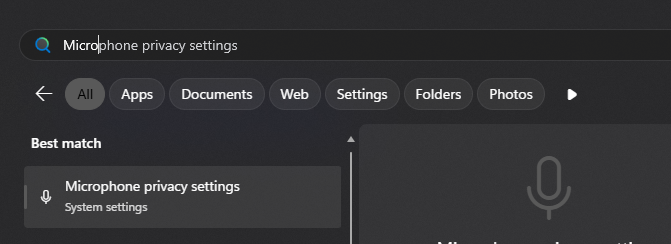
- Toggle the "Let apps access your microphone" setting to
On, then toOff, then toOnagain.
This will disable your microphone on all applications for the current session.
⚠️ Warning
If you are in a Discord call this will disable your microphone in Discord as well. You will need to reconnect to your call for your microphone to work again.
Verify Microphone is Disabled
Alt+Tabback into the game.Start chatting and see if it's transmitting your voice in game.
If the microphone icon does not illuminate, the microphone has been disabled properly.
If your voice is still transmitting in game, then go back to
Microphone Privacy Settingsand try again.
Why Should I Mute?
ℹ️ Why Mute?
Voice chat cannot be disabled in BioShock 2 Multiplayer. Because of this, players are encouraged to mute their microphones to avoid disrupting others with background noise or low-quality audio. Another important reason is performance: keeping your microphone active means the game is constantly transmitting voice data, which can cause crashes for yourself and other players. For this reason, it’s considered common courtesy to mute your microphone so that other players aren’t forced to hear unintended audio and so you don’t risk causing crashes for others in the match.