
Controller Sensitivity Fix
The maximum sensitivity value allowed in game is 10. This guide explains how to raise the controller sensitivity beyond that limit by modifying a configuration file.
Navigate to User_SteamId.ini
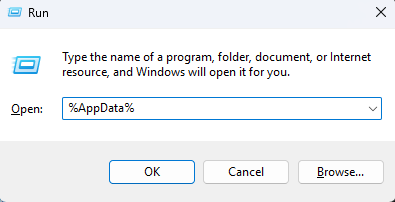
Press
Windows+Rto open the Windows Run DialogType
%AppData%into the text box.Press
Enter. This will open the "AppData" folder.
Within the "AppData" folder, double-click the folder called "Bioshock2Steam".
Within the "Bioshock2Steam" folder, open the file "User_XXXXXXXXXXXXXXXX.ini" in any text editor.
📝 Note
Replace XXXXXXXXXXXXXXXX with the Steam id associated with your account.
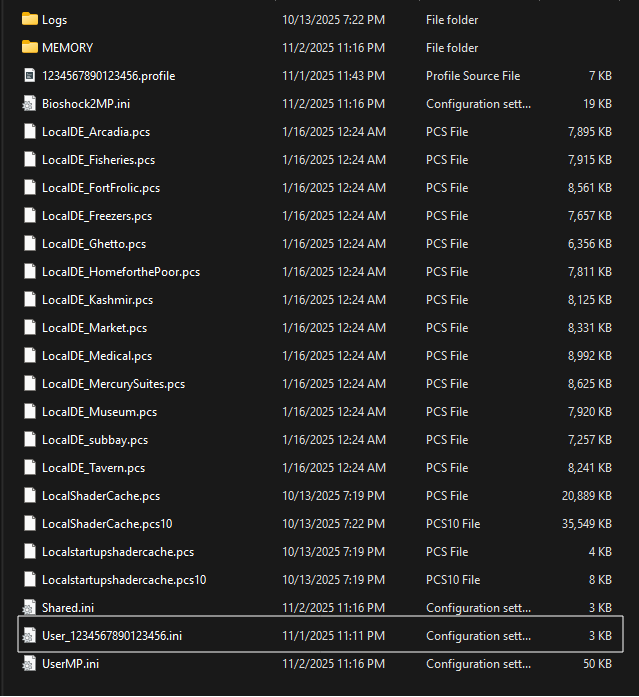
Once opened, the file should resemble this:
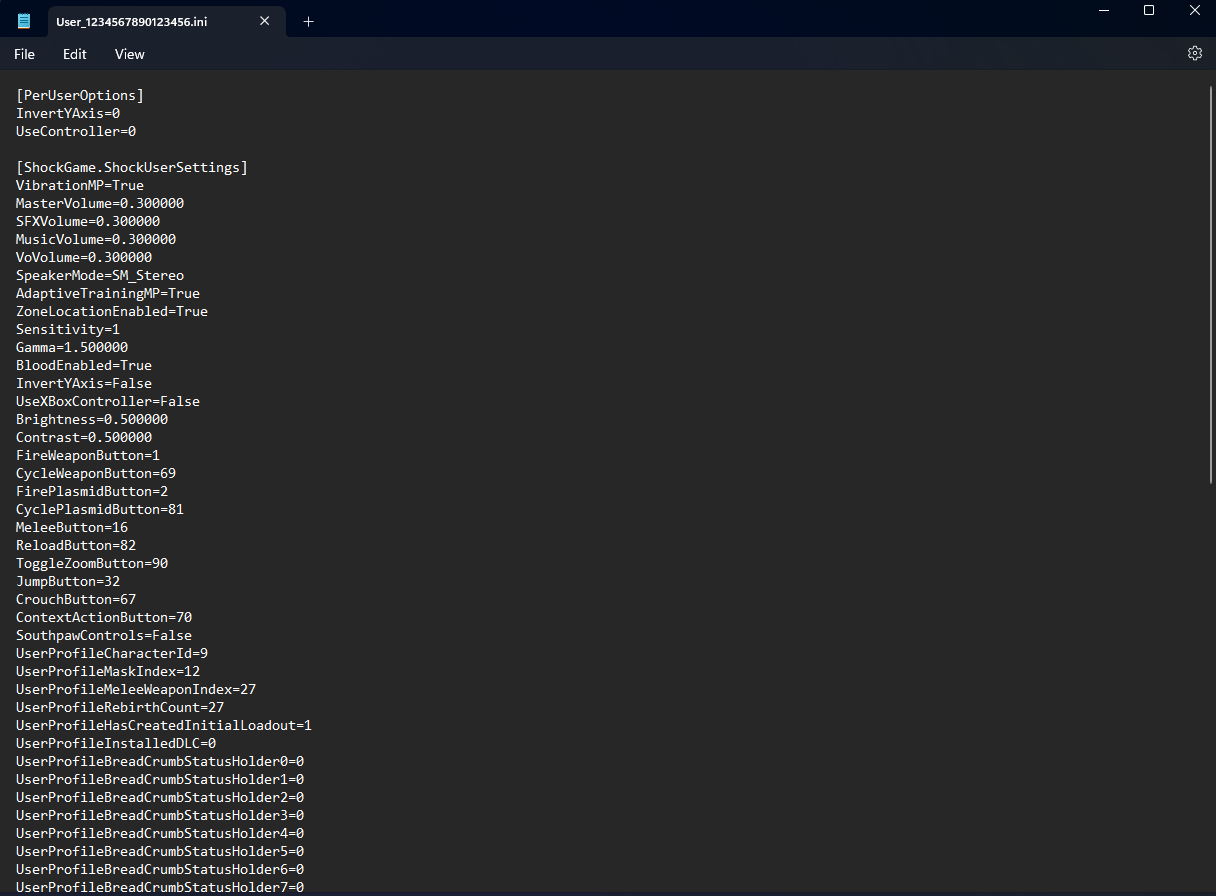
Edit the Sensitivity
📝 Note
If the game is running, it must be restarted in order to apply any changes made to the files.
Only one line needs to be modified.
Press
Ctrl+Fto open the search box.Type
Sensitivityinto the text field.Press
Enter. This should bring you to the first instance of this search term, near the top of the file.Modify this line with the following code:
Sensitivity=XXX- Replace the
XXXwith the value of your choice. It is not recommended to go over 100 for your sensitivity unless you are able to control it.
Sensitivity=30If done correctly, it should resemble this:

- Save the file, either by pressing
Ctrl+Sor choosing "File > Save" from the menu bar.
Verify the In-Game Sensitivity
To confirm the sensitivity was modified successfully, do the following:
Launch the game.
From the main menu, select "Options > Controls".
Under "Mouse Sensitivity", confirm the value shown is the same as what you entered into the file.

⚠️ Warning
From the in-game menu, the sensitivity can be decreased, but it cannot be increased while the value is above 10. To increase the sensitivity to values greater than 10, repeat the steps above.
Testing the Sensitivity
The sensitivity can be tested by starting a private match and using the controller to look around. If the look movement feels too fast or too slow, the values can be adjusted as needed by repeating the steps above.
If you are having issues or feel the sensitivity is the same as before, verify your modifications and try again.
Video Guide
A video guide is available if you need additional assistance. It can also help you determine a more precise sensitivity if you are trying to use the same sensitivity you may have used on console.