
Controller Vibration
The controller vibration cannot be disabled from the in-game menus and must instead be disabled by modifying a config file.
Navigate to User_SteamId.ini
Press
Windows+Rto open the Windows Run DialogType
%AppData%into the text box.Press
Enter. This will open the "AppData" folder.
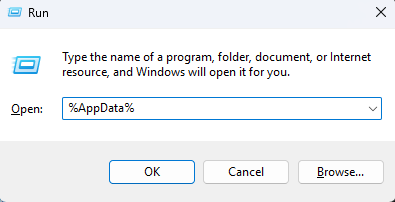
Within the "AppData" folder, double-click the folder called "Bioshock2Steam".
Within the "Bioshock2Steam" folder, open the file "User_XXXXXXXXXXXXXXXX.ini" in any text editor.
📝 Note
Replace XXXXXXXXXXXXXXXX with the Steam id associated with your account.
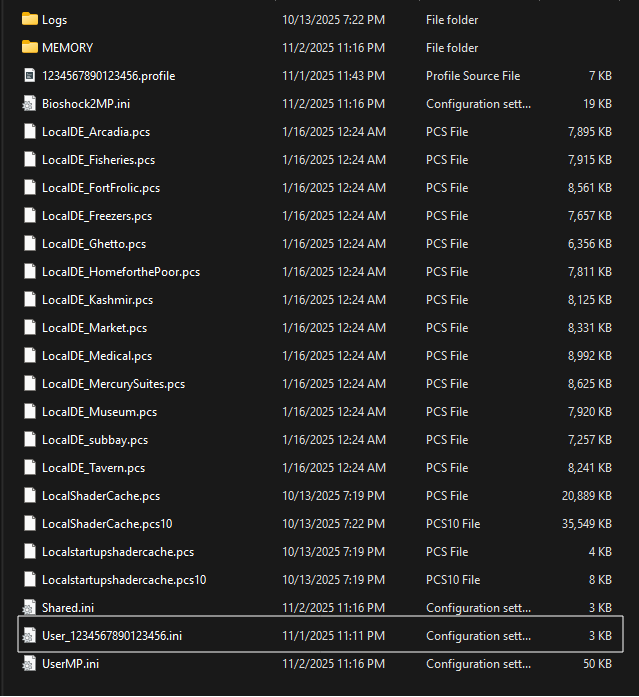
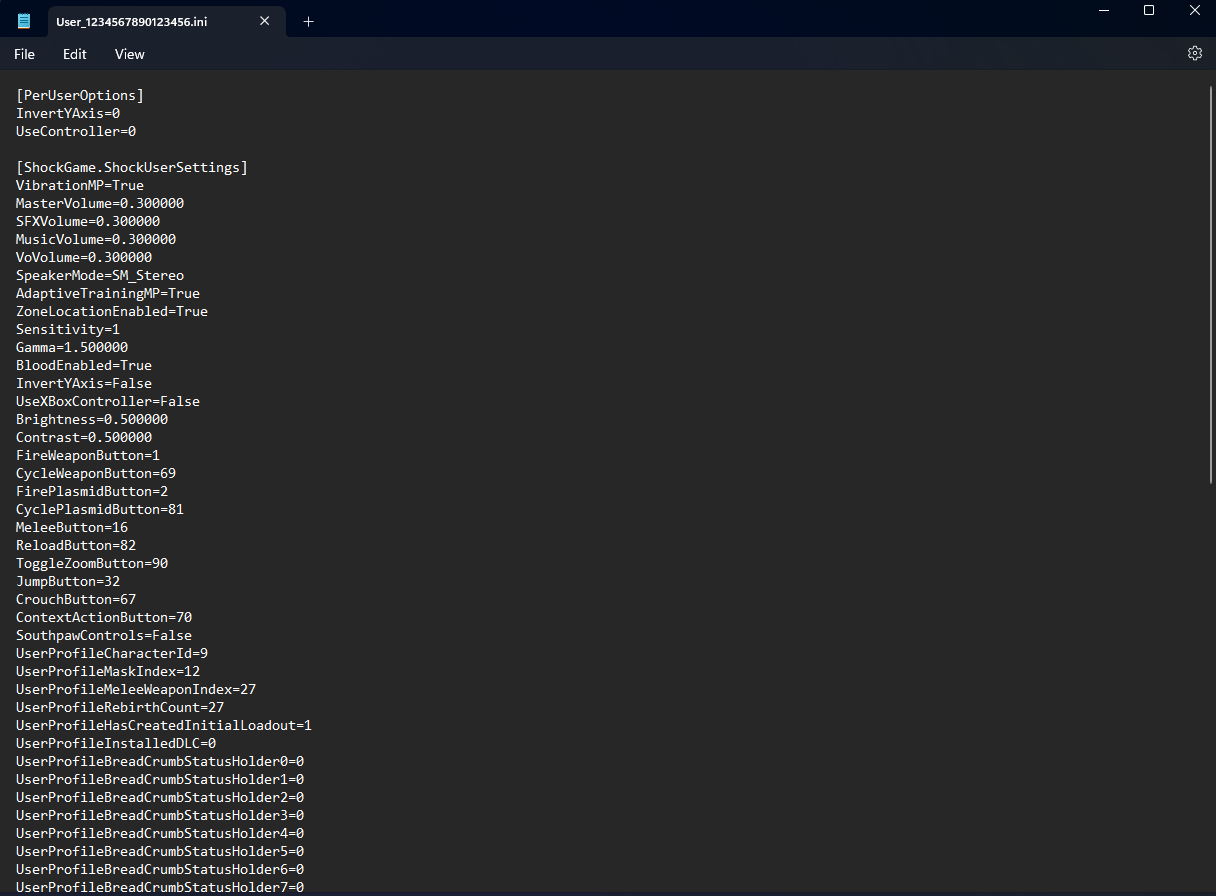
Once opened, the file should resemble this:
Disable Vibration
With the file "User_XXXXXXXXXXXXXXXX.ini" open, press
Ctrl+Fto open the search box.Type
Vibrationinto the text field, then pressEnter. This will bring you to the following line:
VibrationMP=True- Modify this line by changing
TruetoFalse:
VibrationMP=False📝 Note
To re-enable vibration, change this line back to True.
- Save the file, either by pressing
Ctrl+Sor choosing "File > Save" from the menu bar.
The controller vibration is now disabled.
📝 Note
After modifying any files, the game must be restarted for the changes to take effect.