Backup Save Data
This guide explains how to backup your save data in-case you ever uninstall, reinstall, or if your stats get reset.
Navigate to Bioshock2Steam
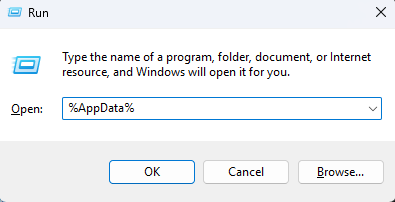
Press
Windows+Rto open the Windows Run Dialog.Type
%AppData%into the text box.Press
Enter. This will open the "AppData" folder.
- Within the "AppData" folder, double-click the folder called "Bioshock2Steam".
Create a Backup
Within the "Bioshock2Steam" folder, 3 files will need to be backed up:
| UserMP.ini | Contains keybinds and controls. |
| XXXXXXXXXXXXXXXX.profile | Contains stats, achievements, and trial progress. |
| User_XXXXXXXXXXXXXXXX.ini | Contains some user settings. |
📝 Note
Replace XXXXXXXXXXXXXXXX with the Steam ID number associated with your account.
With the "Bioshock2Steam" folder open, follow these steps:
Create a new folder anywhere on your system. This will be the backup folder.
Within "Bioshock2Steam", look for the file called "UserMP.ini".
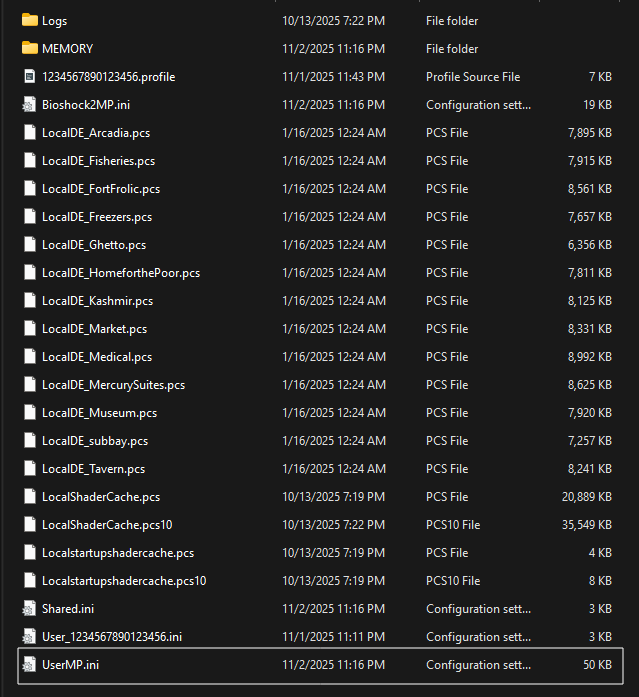
Copy this file, then paste it inside your backup folder.
Next, look for the file called "XXXXXXXXXXXXXXXX.profile".
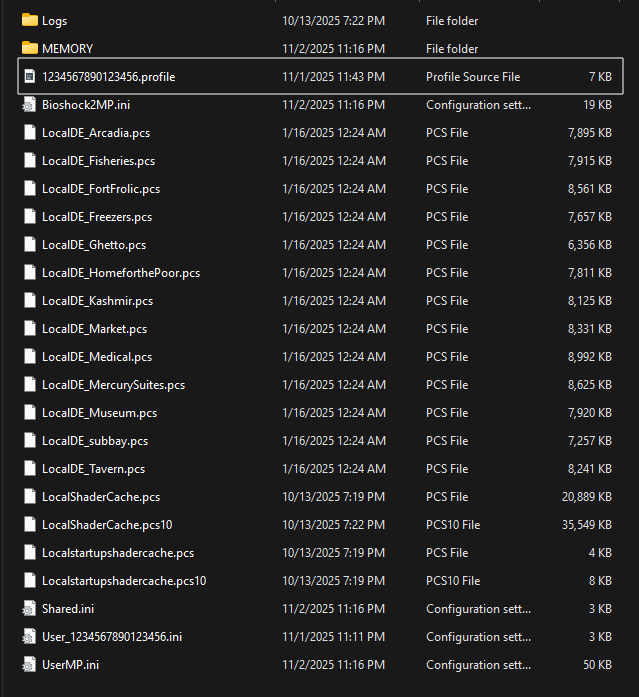
Copy this file, then paste it inside your backup folder.
Lastly, look for the file called
User_XXXXXXXXXXXXXXXX.ini.
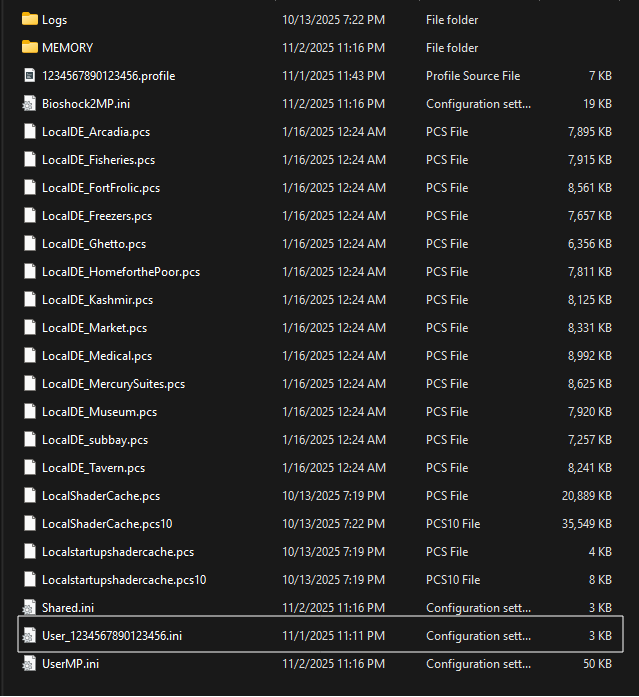
- Copy this file, then paste it inside your backup folder.
Your game data is now backed up.
Restore a Backup
If you want to restore your data from a backup, all thats needed is to copy your backup files into the "Bioshock2Steam" folder.
Open your backup folder.
Highlight all three files, then press
Ctrl+Cto copy them.
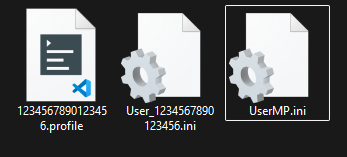
Navigate to the "Bioshock2Steam" folder (using the instructions above).
Click anywhere inside the "Bioshock2Steam" folder, then press
Ctrl+Vto paste the 3 files.If a prompt appears saying the files already exist, select
✅Replace the files in the destination.
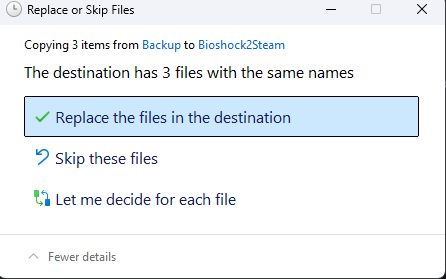
The backed-up data is now restored.
Verify Backup
To verify that the backed-up files were restored correctly, follow these steps:
Launch the game.
From the starting lobby, select "Statistics > Personal Statistics" and confirm if the correct stats are displayed.
Start a private match, then confirm if all keybinds and settings are correct.
If you suspect any files were not correctly restored, double check that you replaced your current files correctly, and confirm that the correct files were backed up.
⚠️ Warning
There is a bug in which, after restoring "UserMP.ini" from a backup, the game may re-generate this file after launching, erasing your keybinds. If this occurs, follow the steps below.
Replacing UserMP.ini
Open the backed-up "UserMP.ini" file in any text editor.
In the text editor, press
Ctrl+Ato select the entire file contents.With the entire file contents selected, press
Ctrl+C.Open the incorrect "UserMP.ini" file in the "Bioshock2Steam" folder.
In the incorrect file, press
Ctrl+Ato select the entire file contents.With the entire file contents selected, press
Ctrl+V.Save the file, either by pressing
Ctrl+Sor choosing "File > Save" from the menu bar.
Storing a Backup
Once you’ve created your backup, there are a few ways to store it safely:
- PC Storage - Keep it in an easy-to-find location on your computer for quick access.
- Cloud Storage - Upload it to a trusted cloud service of your choice.
PC Storage
You can simply leave the backup folder anywhere on your computer. Make sure to remember the location and do not accidently delete it.
Cloud Storage
You can use cloud storage to host your backups. This will let you access your backup from anywhere incase you change devices or want to save space.
Some free recommended cloud storages include:
- Gmail: Google accounts give 15GB cloud storage for free on Google Drive.
- Onedrive: Microsoft accounts give 5GB cloud storage for free on OneDrive.
- Proton Drive: Proton accounts give 5GB cloud storage for free on Proton Drive.
- iCloud: Apple accounts give 5GB cloud storage for free on iCloud.